[vc_row][vc_column width=”1/3″][vc_single_image image=”3483″ css_animation=”appear” border_color=”grey” img_link_target=”_self” img_size=”full”][/vc_column][vc_column width=”2/3″][vc_column_text]This tutorial has been updated for Hog4.
The complete Quick Start Guides are also available in PDF form below.[/vc_column_text][vc_button title=”Hog 3 QuickStart Guide” target=”_self” color=”btn-primary” icon=”wpb_document_pdf” size=”btn-small” href=”https://vd4bc0b0xc9.c.updraftclone.com/pdf/hog/Hog3-Quickstart.pdf”][vc_button title=”Hog 4 QuickStart Guide” target=”_self” color=”btn-inverse” icon=”wpb_document_pdf” size=”btn-small” href=”https://vd4bc0b0xc9.c.updraftclone.com/pdf/hog/Hog4-Quickstart.pdf”][/vc_column][/vc_row][vc_row][vc_column width=”1/1″][vc_text_separator title=”Setting Default Fade and Delay Information” title_align=”separator_align_left” color=”blue” style=”double”][/vc_column][/vc_row][vc_row][vc_column][vc_column_text]
1. Press the SETUP key
2. Select PREFERENCES from the Setup Toolbar (bottom of the right monitor)
3. Select TIMING from the menu on the left hand side of the Preferences Window.
4. Click the cell(s) under Fade or Delay that you wish to change (the cell will get a red box around it)
5. Hit the SET key
6. Type in a new Fade or Delay time, followed by ENTER
Note: This will not affect the Cues that have already been written.
[/vc_column_text][/vc_column][/vc_row][vc_row][vc_column width=”1/1″][vc_text_separator title=”Editing Timing in the Cuelist Window” title_align=”separator_align_left” color=”blue” style=”double”][/vc_column][/vc_row][vc_row][vc_column][vc_column_text]1. Open the Cuelist Window (Double tap the CHOOSE key of your list’s Master or use the Cuelist View).
2. Click the cue’s cell(s) under Fade or Delay that you wish to change (the cell will get a red box around it)
3. Hit the SET key
4. Type in a new Fade or Delay time, followed by ENTER
Note: This works well only with single Fade/Delay cues. For multi-part cues, you may want to edit using View Cue.

[/vc_column_text][/vc_column][/vc_row][vc_row][vc_column width=”1/1″][vc_text_separator title=”Editing Timing in the Programmer” title_align=”separator_align_left” color=”blue” style=”double”][/vc_column][/vc_row][vc_row][vc_column][vc_column_text]
In each scenario, you must first have attributes in the Programmer.
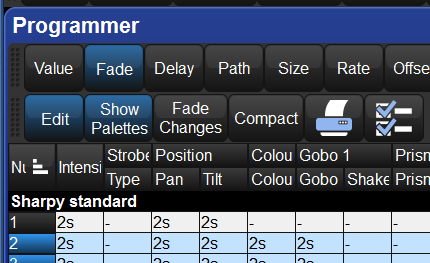
In Place Editing of Timing
1. Open the Programmer window
2. At the top of the Programmer window, click the FADE (or DELAY) button.
3. Click on the timing cell(s) you want wish to change.
4. Press SET
5. Enter a new time, followed by ENTER
[/vc_column_text][/vc_column][/vc_row][vc_row][vc_column][vc_column_text]
Using the Encoder Wheels
1. Select the fixture(s) whose timing you wish to change
2. Hit the TIME key
3. Use the encoder wheels to affect FADE IN/OUT, DELAY IN/OUT timing.
Using Keystrokes
1. Select the fixture(s) whose timing you wish to change.
2. Press the TIME key
3. Type in a new Fade time in seconds.
4. Press ENTER
Note: To affect Delay timing, press the TIME key twice. Example: TIME TIME 2 ENTER.
[/vc_column_text][/vc_column][/vc_row][vc_row][vc_column width=”1/1″][vc_column_text css=”.vc_custom_1407378264845{background-color: #ff0033 !important;}”]
Next up…
[/vc_column_text][/vc_column][/vc_row][vc_row][vc_column][vc_column_text]
[/vc_column_text][/vc_column][/vc_row]



1 thought on “Hog QuickStart: Timing”
Comments are closed.