[vc_row][vc_column width=”1/3″][vc_single_image image=”3475″ css_animation=”appear” border_color=”grey” img_link_target=”_self” img_size=”full”][/vc_column][vc_column width=”2/3″][vc_column_text]This tutorial has been updated for Hog4.
The complete Quick Start Guides are also available in PDF form below.[/vc_column_text][vc_button title=”Hog 3 QuickStart Guide” target=”_self” color=”btn-primary” icon=”wpb_document_pdf” size=”btn-small” href=”https://vd4bc0b0xc9.c.updraftclone.com/pdf/hog/Hog3-Quickstart.pdf”][vc_button title=”Hog 4 QuickStart Guide” target=”_self” color=”btn-inverse” icon=”wpb_document_pdf” size=”btn-small” href=”https://vd4bc0b0xc9.c.updraftclone.com/pdf/hog/Hog4-Quickstart.pdf”][/vc_column][/vc_row][vc_row][vc_column width=”1/1″][vc_text_separator title=”Starting and Manipulating Effects” title_align=”separator_align_left” color=”blue” style=”double”][/vc_column][/vc_row][vc_row][vc_column][vc_column_text]
1. Select fixtures in the Programmer.
2. Open the Effects Directory and Engine by holding OPEN and pressing EFFECTS, or double tapping the EFFECTS key.
3. Touch any Effect from within the Directory.
4. Use the Effects wheelset (press the EFFECTS key) to modulate you Effect.
Note: You can also manipulate the cells in the Effects Engine window, including changing the TABLE waveform to create new effects.


[/vc_column_text][/vc_column][/vc_row][vc_row][vc_column width=”1/1″][vc_text_separator title=”Recording Effects into Cues” title_align=”separator_align_left” color=”blue” style=”double”][/vc_column][/vc_row][vc_row][vc_column][vc_column_text]
1. Create/manipulate the Effect you want to record
2. Record it into any Cue (new or existing) as you would any other data
[/vc_column_text][/vc_column][/vc_row][vc_row][vc_column width=”1/1″][vc_text_separator title=”Recording Effects into Palettes” title_align=”separator_align_left” color=”blue” style=”double”][/vc_column][/vc_row][vc_row][vc_column][vc_column_text]
1. Create/manipulate the Effect you want to record
2. Press RECORD
3. Touch any empty box in the Effects Directory
Note: To record Effect information into another Palette directory, choose “Use E” after pressing RECORD. This is masking.
[/vc_column_text][/vc_column][/vc_row][vc_row][vc_column width=”1/1″][vc_text_separator title=”Releasing Effects from the Programmer” title_align=”separator_align_left” color=”blue” style=”double”][/vc_column][/vc_row][vc_row][vc_column][vc_column_text]-From the Effects Engine
1. Select the fixture(s) whose Effect you wish to stop
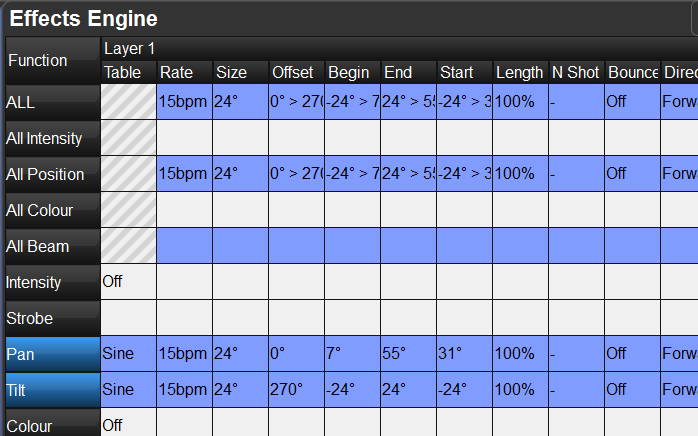
2. Locate the TABLE cells for the parameters running Effects in the Effects Engine
3. Click the cell and press SET
4. Select OFF from the drop-down list, followed by ENTER
 [/vc_column_text][/vc_column][/vc_row][vc_row][vc_column][vc_column_text]
– Using Knockout
1. Select the fixture(s) whose Effect you wish to stop
2. Press the EFFECT key
3. Press KNOCKOUT on the main toolbar (bottom of the right monitor)
[/vc_column_text][/vc_column][/vc_row][vc_row][vc_column width=”1/1″][vc_text_separator title=”Making an “Effect Off“ Palette” title_align=”separator_align_left” color=”blue” style=”double”][/vc_column][/vc_row][vc_row][vc_column][vc_column_text]
1. Take your lights to their default parameters: Release all Playback (PIG + RELEASE) and clear the Programmer and all Editor windows.
2. Select all fixtures in your rig.
3. Press TOUCH (main toolbar: bottom of the right monitor)
– This will put the default OFF value for Effects in the Effects Directory
4. Press RECORD
5. Touch any empty box in the Effects Directory and give it a name.
Note: You may want to make multiple “Effects-Off” Palettes that are more specific. Example: Record an “Effects-Off” Palette that only affects Colour Effects.
[/vc_column_text][/vc_column][/vc_row][vc_row][vc_column width=”1/1″][vc_column_text css=”.vc_custom_1407378201920{background-color: #ff0033 !important;}”]
Next up…
[/vc_column_text][/vc_column][/vc_row]


1 thought on “Hog QuickStart: Effects”
Comments are closed.