[vc_row][vc_column width=”1/3″][vc_single_image image=”3522″ css_animation=”appear” border_color=”grey” img_link_target=”_self” img_size=”full”][/vc_column][vc_column width=”2/3″][vc_column_text]This tutorial has been updated for Hog4. The complete Quick Start Guides are also available in PDF form below.[/vc_column_text][vc_button title=”Hog 3 QuickStart Guide” target=”_self” color=”btn-primary” icon=”wpb_document_pdf” size=”btn-small” href=”https://vd4bc0b0xc9.c.updraftclone.com/pdf/hog/Hog3-Quickstart.pdf”][vc_button title=”Hog 4 QuickStart Guide” target=”_self” color=”btn-inverse” icon=”wpb_document_pdf” size=”btn-small” href=”https://vd4bc0b0xc9.c.updraftclone.com/pdf/hog/Hog4-Quickstart.pdf”][/vc_column][/vc_row][vc_row][vc_column width=”1/1″][vc_text_separator title=”Adding the fixtures” title_align=”separator_align_left” color=”blue” style=”double”][/vc_column][/vc_row][vc_row][vc_column][vc_column_text]
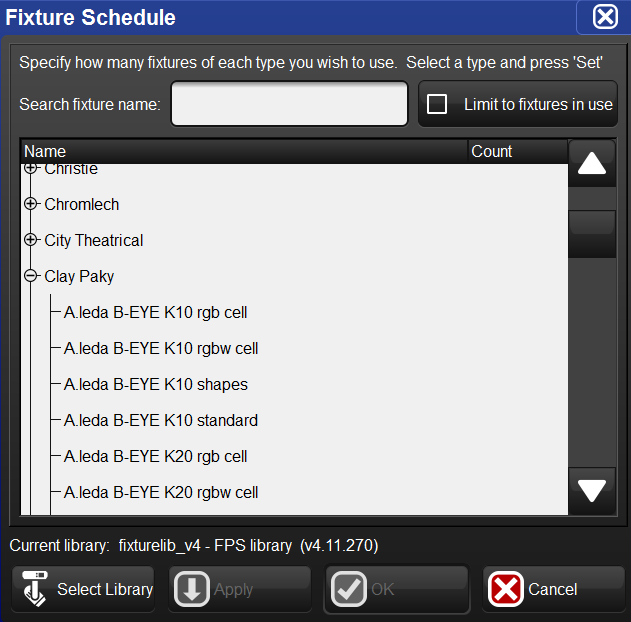
[/vc_column_text][/vc_column][/vc_row][vc_row][vc_column width=”1/1″][vc_text_separator title=”Changing the User Numbers” color=”blue” style=”double” title_align=”separator_align_left”][/vc_column][/vc_row][vc_row][vc_column][vc_column_text]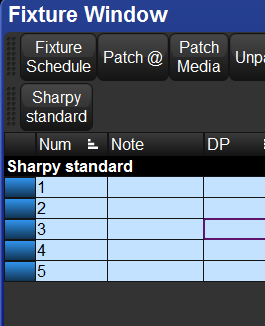 The User Numbers are how you will select your fixtures in the programmer, so you want to make them unique. This number does not affect or utilize the address of the fixtures
[/vc_column_text][/vc_column][/vc_row][vc_row][vc_column width=”1/1″][vc_text_separator title=”Patching an Individual Fixture” title_align=”separator_align_left” color=”blue” style=”double”][/vc_column][/vc_row][vc_row][vc_column][vc_column_text]
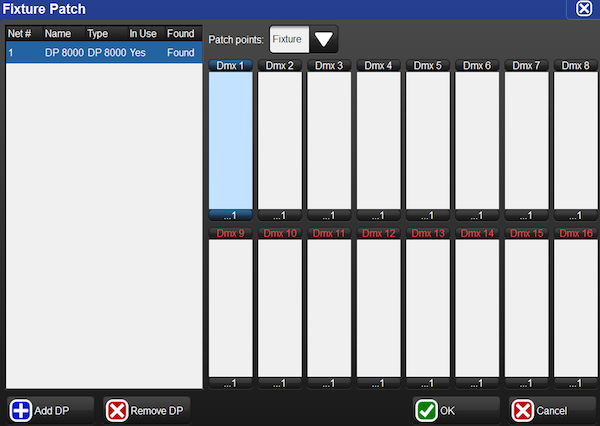
Note: Alternatively, you can choose to key all the information in via the command line. 1. Key in the User Number of the fixture you want to patch, and then press the @ key.
2. Key in the Net # of the DP you wish to patch to, followed by the / (slash) key.
3. Key in the Universe you wish to patch to, followed by the / (slash) key.
4. Key in the start address of your fixture, followed by ENTER.
[/vc_column_text][/vc_column][/vc_row][vc_row][vc_column width=”1/1″][vc_text_separator title_align=”separator_align_left” color=”blue” style=”double” title=”Patching a Range of Fixtures”][/vc_column][/vc_row][vc_row][vc_column][vc_column_text]This is used when your fixtures are addressed sequentially.
1. Key in the User Number range you wish to patch using the THRU key (Example: 1 THRU 10), followed by the @ key.
2. In the pop-up window, select the DP that you’d like to patch to from the left side window.
3. Click on the column of the universe you’d like to patch to.
4. Key in the start address of the first fixture in your range, followed by ENTER.
Note: Alternatively, you can choose to key all the information in via the command line.
1. Key in the User Number range you want to patch using the THRU key (Example: 1 THRU 10), and then press the @ key.
2. Key in the Net # of the DP you wish to patch to, followed by the / (slash) key.
3. Key in the Universe you wish to patch to, followed by the / (slash) key.
4. Key in the start address of your the first fixture in your range, followed by ENTER.
[/vc_column_text][/vc_column][/vc_row][vc_row][vc_column width=”1/1″][vc_text_separator title=”Patching Fixtures with Multiple Patchpoints” title_align=”separator_align_left” color=”blue” style=”double”][/vc_column][/vc_row][vc_row][vc_column][vc_column_text]
1. Key in the User Number of the fixture you want to patch, and then press the @ key.
2. In the pop-up window, locate the drop-down menu for PATCH POINTS, and select FIXTURE.
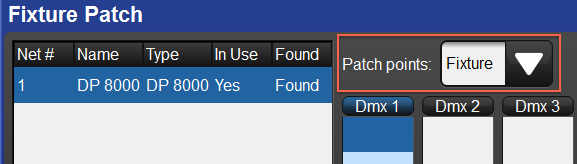
3. Select the DP that you’d like to patch the mechanical portion of your fixture to from the left side window.
4. Click on the column of the universe that you’d like to patch to.
5. Key in the start address of the mechanical portion of your fixture (the address set in the fixture’s menu), followed by the ENTER key.
6. Press @ again.
7. In the pop-up window, locate the drop-down menu for PATCH POINTS, and select INTENSITY
8. Select the DP that you’d like to patch to from the left side window.
9. Click on the column of the universe that you’d like to patch to.
10. Key in the address of the dimmer where the fixture’s lamp is plugged in, followed by the ENTER key.
[/vc_column_text][/vc_column][/vc_row][vc_row][vc_column width=”1/1″][vc_text_separator title=”Unpatching Fixtures” title_align=”separator_align_left” color=”blue” style=”double”][/vc_column][/vc_row][vc_row][vc_column][vc_column_text]
1. Key in the User Number(s) of the fixture(s) you wish to unpatch, followed by ENTER
2. Press the UNPATCH button at the top of the Fixture Window.
[/vc_column_text][/vc_column][/vc_row][vc_row][vc_column width=”1/1″][vc_text_separator title=”To unpatch an entire universe” title_align=”separator_align_left” color=”blue” style=”double”][/vc_column][/vc_row][vc_row][vc_column][vc_column_text]
1. Click VIEW BY DP from the top of the Fixture Window.
2. Click on the Universe you wish to unpatch (it will be a light blue color) 3. Press UNPATCH UNIVERSE from the top of the window.

[/vc_column_text][/vc_column][/vc_row][vc_row][vc_column width=”1/1″][vc_text_separator title=”To unpatch an entire DP” title_align=”separator_align_left” color=”blue” style=”double”][/vc_column][/vc_row][vc_row][vc_column][vc_column_text]
1. Click VIEW BY DP from the top of the Fixture Window.
2. Select the DP you wish to unpatch from the Drop Down Menu.
3. Click UNPATCH DP from the top of the window.
[/vc_column_text][/vc_column][/vc_row][vc_row][vc_column width=”1/1″][vc_column_text css=”.vc_custom_1407355866527{background-color: #ff0033 !important;}”]
Next up…
[/vc_column_text][/vc_column][/vc_row]


1 thought on “Hog QuickStart: Patching”
Comments are closed.